Gemini CLI: Analyzing Terminal Agent Workflows and Integration Strategies

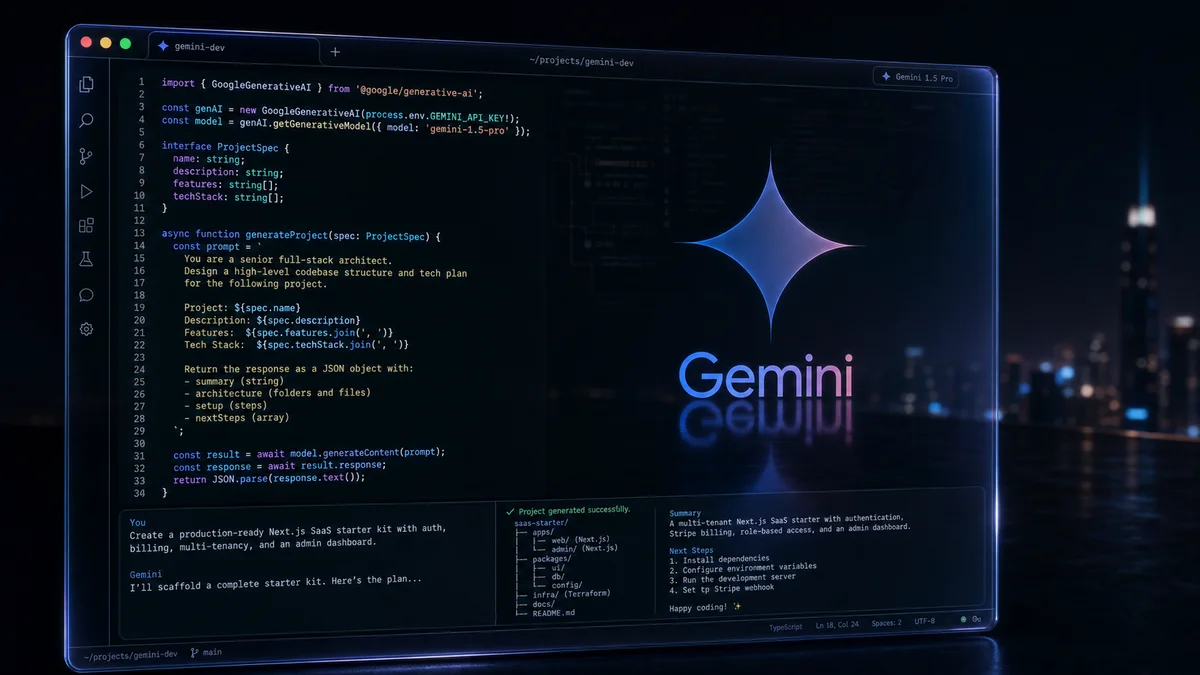
Gemini CLI is an open-source agent that provides direct access to Gemini models from a terminal. According to the official README and documentation, its core goal is to provide "the most direct path from your prompt to our model." It supports a developer-friendly terminal-first design, built-in tools for file manipulation, shell commands, and web fetching, extensibility through the Model Context Protocol (MCP), and multiple authentication options. This post offers a technical analysis of workflow, authentication, and integration patterns grounded in the public repository README and linked documentation.
Key Takeaways
- Open source and license: released under Apache 2.0, as stated in the repository README.
- Model access: Gemini 3 family models; the documentation mentions "Gemini 3 models" and a one-million-token context window.
- Pricing and limits: the documentation describes Free tier limits such as 60 requests per minute and 1,000 requests per day.
- Built-in tools: tools include grounding through Google Search, file-system and shell commands, and web fetching.
- Extensibility: official support for connecting external tools and services through MCP servers.
- Execution modes: supports both interactive terminal use and headless script and automation modes.
These points are grounded in the repository README and linked official documentation. Internal implementation details, such as every internal security-audit procedure and the low-level implementation of runtime sandboxing, may be outside the public documentation and are not inferred here.
Why a Terminal-Based Agent?
Gemini CLI is designed to let developers perform the following work in the shell environment they already know:
- request codebase search, analysis, and modification
- automate pull-request and issue work such as reviews and labeling
- work with local files and the shell environment, including running tests and deployment commands
The documented terminal-first approach reflects a design philosophy in which the tool fits naturally into command-line workflows rather than an IDE or web UI. This benefits CI/CD integration, headless execution in server environments, and short feedback loops.
Authentication and Operating Modes from the Documentation
The documented authentication options fall into three broad groups:
- OAuth with Google sign-in: recommended for individual developers and does not require separate API-key management.
- Gemini API key: for cases requiring model selection and finer control; the documentation includes guidance and examples.
- Vertex AI: an integration option for enterprise and scaled workloads, with additional security and scaling advantages.
The documentation includes examples of both interactive execution, started with the gemini command, and headless mode with flags such as --output-format, showing that the CLI can be called directly from an automation pipeline.
Plain definition: a mode that runs a program automatically from the command line without opening a GUI or interactive interface. Everyday example: it resembles a CI server running a test script automatically without a person watching it.
Extensibility: MCP and External Tool Integration
The documentation repeatedly emphasizes extensibility through the Model Context Protocol. Configuring an MCP server lets Gemini CLI connect external systems such as Slack, databases, and media-generation services to its workflow. Examples in the documentation include integration commands such as @github, @slack, and @database.
This pattern provides the following advantages:
- the agent can access local and remote resources to perform concrete actions such as labeling, sending messages, and executing queries
- organization-specific plugins can be deployed as MCP servers for centralized management
Plain definition: a communication contract that lets a model or agent exchange information safely with an external service. Everyday example: it resembles a smartphone app requesting weather information through a backend API with a defined request and response contract.
Workflow Examples from Documented Use Cases
- Run Gemini locally and request a codebase summary
gemini -p "Explain the architecture of this codebase"
- Run non-interactively in an automation script and parse JSON output
gemini -p "Run tests and deploy" --output-format stream-json
- Integrate Gemini CLI into GitHub Actions to automate pull-request review
- call it from a script through the officially provided GitHub Action
- Add MCP servers to perform external actions such as Slack notifications and database queries
These scenarios combine examples from the README and documentation. Design token handling and permission policy separately to meet each organization's security requirements.
Plain definition: a feature that saves the state of a conversation or session so it can be resumed later. Everyday example: it resembles saving a long chat midway, reopening it later, and continuing the previous conversation.
Security and Operational Considerations: Confirmed Details and Uncertainty
The documentation provides a Sandboxing & Security guide and mentions trusted folders and execution policies. The repository README and public documentation alone, however, do not fully reveal the runtime sandbox's implementation details, such as process isolation and network-policy enforcement. Review the following before operating Gemini CLI in production:
- token and key management and logging that prevents sensitive-data exposure
- permission scopes for external services added through MCP
- trusted-folder restrictions and code-execution policy
Plain definition: the maximum amount of text, measured in tokens, that a model can see at once; it limits long-document processing. Everyday example: it is like a book with a fixed number of pages that can be read at one time; when too much is supplied, only part may be processed.
Recommended Adoption Checklist
- Choose an authentication method—OAuth, API key, or Vertex AI—that fits organizational policy.
- Standardize output formats such as JSON and stream-json for each automation scenario.
- Design permissions, networking, and audit logging for MCP integrations.
- Restrict arbitrary code execution through trusted-folder and sandbox settings.
- Apply secret management and rotation for production keys and tokens.
Reference Images
 This screenshot visualizes the CLI's interactive, terminal-centered UI and a basic workflow, helping readers understand its usability and workflow.
The version badge helps reveal package distribution and version policy, such as preview, stable, and nightly channels. The documentation specifies installation commands for each channel, including
npm install -g @google/gemini-cli@preview.
Conclusion
Based on the public documentation, Gemini CLI is a practical tool for accelerating terminal-centered developer workflows. It combines built-in tools, MCP extensibility, multiple authentication methods, and headless automation for a range of operating scenarios. Security and sandbox implementation details still require further review for production. This analysis is based on the public repository and documentation, and internal architecture or private operating procedures may not be documented.
Reference: source README and linked official documentation — https://github.com/google-gemini/gemini-cli
Sources
- google-gemini/gemini-cli — license:
unknown, retrieved:2026-07-06. - Image: AI-generated cover image via OpenRouter — license:
ai-generated-original.